Quick Sign In:  

 PhantomDeejay
Hi, I'm George!
I started to involve with dj-ing in 1992. I have been a Digital Jockey since 1998, and from year 2000 and afterwards I've went EXCLUSIVELY Digital (meaning that I don't use other media for my gigs).
I have been involved with some dj software titles development and beta testing all these years, and of course I've been an active member of various dj communities.
I have worked as an audio engineer for several years, mainly in the PA field covering various live performances from small bands up to some big names of the industry.
Currently I'm a resident Dj on a small club of a small town in Greece, and in collaboration with...

Thu 18 Oct 12 @ 9:20 am

Το VirtualDJ χρησιμοποιεί βάσεις δεδομένων υπό την μορφή αρχείων XML για να αποθηκεύσει πληροφορίες σχετικά με τα τραγούδια σας.

Για λόγους φορητότητας το VirtualDJ δεν χρησιμοποιεί μία καθολική βάση δεδομένων (Global Database) αλλά αντίθετα χρησιμοποιεί πολλές μικρότερες τοπικές βάσεις (Local Databases) και για την ακρίβεια μία για ΚΑΘΕ δίσκο που περιέχει οπτικοακουστικό υλικό!
Αυτό επιτρέπει την "ανταλλαγή" εξωτερικών σκληρών δίσκων μεταξύ διαφορετικών υπολογιστών χωρίς να χρειάζεται κάθε φορά να γίνει "εξαγωγή/εισαγωγή" των δεδομένων της βάσης που αφορούν τα αρχεία του συγκεκριμένου δίσκου.

Οι βάσεις δεδομένων του VirtualDJ βρίσκονται στις εξής τοποθεσίες στον υπολογιστή σας:

Α. Για τον σκληρό δίσκο του συστήματος (τον δίσκο που είναι εγκατεστημένο το λειτουργικό σας) δηλαδή 9 φορές στις 10 για τον δίσκο C: η βάση δεδομένων βρίσκεται στην διαδρομή
C:\Users\YourUserName\Documents\VirtualDJ\VirtualDJ Database v6.XML

B. Για κάθε επιπλέον δίσκο που αναγνωρίζει το λειτουργικό σας (πλην των δίσκων δικτύου) και περιέχει δεδομένα που έχουν εισαχθεί στην βάση αναζήτησης του VirtualDJ το πρόγραμμα δημιουργεί ένα αρχείο με την ονομασία VirtualDJ Local Database v6.XML στο "root" του δίσκου.
Έτσι για παράδειγμα για τον δίσκο F: η βάση δεδομένων του θα είναι
F:\VirtualDJ Local Database v6.XML

Οι βάσεις δεδομένων του προγράμματος περιέχουν πολλές πολύτιμες πληροφορίες και για αυτό καλό θα είναι να κρατάτε αντίγραφα ασφαλείας όσο πιο συχνά μπορείτε!

Οι πληροφορίες που περιέχουν οι βάσεις δεδομένων μεταξύ άλλων είναι:
1. Τα στοιχεία του τραγουδιού όπως Καλλιτέχνης, Τίτλος, Άλμπουμ, Χρονολογία, Σχόλια κτλ.
2. Τα BPM, η θέση του CBG, το μουσικό κλειδί και το Gain του τραγουδιού
3. Τα Hot-Cues
4. Διάφορες χρηστικές πληροφορίες όπως η ημερομηνία που το τραγούδι προστέθηκε στη βάση, η ημερομηνία τελευταίας αναπαραγωγής του καθώς και το πλήθος τους, κ.α.
Εκτός από πληροφορίες σχετικά με τα τραγούδια, οι βάσεις δεδομένων κρατάνε και πληροφορίες όπως ποια τραγούδια ανήκουν σε ποιο "εικονικό φάκελο" (Virtual Folder), ποιους φακέλους έχετε ορίσει σαν "Αγαπημένο" (Favorite Folder) αλλά και τι κριτήρια έχετε ορίσει σε φακέλους φίλτρων (Filter Folders)
Όλες αυτές οι πληροφορίες υπάρχουν ΣΕ ΚΑΘΕ βάση δεδομένων του VirtualDJ. Η βάση όμως που βρίσκεται στον δίσκο του συστήματος περιέχει μερικές ακόμα έξτρα πληροφορίες. Αυτές οι πληροφορίες είναι η ΔΟΜΗ του Browser. Με λίγα λόγια στην βάση του δίσκου C: υπάρχουν και οι πληροφορίες που έχουν να κάνουν με την σειρά που εμφανίζονται οι διάφοροι φάκελοι στον Browser αλλά και τυχόν συγχωνεύσεις τους!

Τι άλλο πρέπει να γνωρίζετε:
1. Οι εξωτερικοί σκληροί δίσκοι μπορεί να αλλάξουν γράμμα αρκετές φορές σε ένα σύστημα ή να πάρουν διαφορετικό γράμμα δίσκου σε δύο διαφορετικά συστήματα. Έτσι μέσα σε μία βάση δεδομένων ενός εξωτερικού δίσκου μπορεί να υπάρχουν εγγραφές με περισσότερα από ένα γράμματα δίσκου. Αυτό όμως ΔΕΝ επηρεάζει την λειτουργία της βάσης! Το VirtualDJ "αγνοεί" το γράμμα του δίσκου που είναι αποθηκευμένο στη βάση και χρησιμοποιεί την "σχετική διαδρομή" για να βρει τα τραγούδια.
2. Όταν κάνετε εργασίες στα αρχεία σας ΜΕΣΑ από τον browser του VirtualDJ όπως μετονομασία, αντιγραφή και μετακίνηση, το VirtualDJ ενημερώνει αυτόματα και τις σχετικές βάσεις. Έτσι, αν μεταφέρετε για παράδειγμα κάποια τραγούδια από ένα δίσκο σε ένα άλλο (ή από ένα φάκελο σε κάποιο άλλο) μέσα από τον Browser του προγράμματος, το VirtualDJ θα ενημερώσει αυτόματα τις βάσεις δεδομένων που χρειάζεται, χωρίς να χάσετε καμία πληροφορία ή να πρέπει μετά να κάνετε χειροκίνητα επεξεργασία των βάσεων για να κρατήσετε τα δεδομένα σας.
3. Όταν μετακινείτε, μετονομάζετε ή σβήνετε αρχεία έξω από το VirtualDJ το πρόγραμμα ΔΕΝ σβήνει αυτόματα τις σχετικές εγγραφές στην βάση! Το πρόγραμμα κρατάει αυτές τις εγγραφές σαν "ορφανές" ώστε στην περίπτωση που τα αρχεία ξαναβρεθούν στην αρχική τους θέση (πχ σβήσατε ή μετακινήσατε κάποιον φάκελο κατά λάθος) να εξακολουθεί να έχει διαθέσιμες όλες τις πληροφορίες σχετικά μ' αυτά τα αρχεία.
4. Ο καθαρισμός από ορφανές εγγραφές και η "επισκευή" (στην ουσία compacting) των βάσεων είναι 2 εργασίες που γίνονται μέσα από το πρόγραμμα και χωριστά για κάθε μία από τις διαθέσιμες βάσεις. Συνίσταται οι εργασίες αυτές ανάλογα και με τη συχνότητα χρήσης να γίνονται τουλάχιστον μία φορά το μήνα, αφού πρώτα για κάθε ενδεχόμενο έχετε κρατήσει ένα αντίγραφο ασφαλείας.


Thu 18 Oct 12 @ 3:58 am

Βήμα 1ο:
Ανοίξτε τον φάκελο "Τα έγγραφά μου". Εκεί θα δείτε οτι υπάρχει ένας φάκελος με την ονομασία "VirtualDj". Κάντε αυτό το φάκελο αντιγραφή σε κάποια άλλη θέση στο σκληρό σας δίσκο.

Βήμα 2ο:
Αν χρησιμοποιείται εξωτερικούς σκληρούς δίσκους με τραγούδια, video clips κτλ αποσυνδέστε τους

Βήμα 3ο:
Για κάθε εσωτερικό δίσκο στον υπολογιστή σας πλην του δίσκου C: που έχει τραγούδια κτλ το VirtualDj δημιουργεί μια βάση XML στο root του δίσκου. Επομένως, ανοίξτε κάθε δίσκο και αντιγράψτε την βάση του "VirtualDj Local Database v6.xml" σε κάποιο ασφαλές μέρος στον υπολογιστή σας.

Βήμα 4ο:
Τρέξτε το πρόγραμμα απεγκατάστασης, είτε από τον φάκελο του VirtualDj στο μενού εκκίνησης, είτε από τον πίνακα ελέγχου (Προσθαφαίρεση προγραμμάτων)

Βήμα 5ο:
Όταν το πρόγραμμα απεγκατάστασης σας ρωτήσει αν θέλετε να αφαιρέσει και όλες τις προσωπικές σας ρυθμίσεις, επιλέξτε ΝΑΙ

Βήμα 6ο:
Όταν τελειώσει η απεγκατάσταση ανοίξτε τον Registry Editor των Windows. (Απλά γράψτε regedit στο μενού εκκίνησης των Windows και το πρόγραμμα θα εμφανιστεί στην λίστα). Στην Registry κάντε περιήγηση στη διαδρομή HKEY_CURRENT_USER\Software\
Ψάξτε να δείτε αν υπάρχει "υποφάκελος" VirtualDj. Εάν υπάρχει, κάντε δεξί κλικ και επιλέξτε διαγραφή.

Βήμα 7ο:
Μόλις έχετε απεγκαταστήσει πλήρως το VirtualDj! Μπορείτε να κάνετε μια επανεκκίνηση εαν επιθυμείτε, αν και δεν είναι 100% απαραίτητο.

Βήμα 8ο:
Κατεβάστε την τελευταία διαθέσιμη έκδοση του VirtualDj από το download center σας.

Βήμα 9ο:
Τρέξτε και ολοκληρώστε την εγκατάσταση του VirtualDj.

Βήμα 10ο:
Σιγουρευτείτε οτι όλα δουλεύουν σωστά. Εάν όλα δουλεύουν σωστά ΤΟΤΕ ΚΑΙ ΜΟΝΟ ΤΟΤΕ περάστε στα βήματα 11, 12 και 13

Βήμα 11ο:
Κλείστε το VirtualDj

Βήμα 12ο:
Επαναφέρετε τα αντίγραφα ασφαλείας των βάσεων δεδομένων που κρατήσατε πριν στην αρχική τους θέση.

Βήμα 13ο:
Ανοίξτε το φάκελο "Τα έγγραφά μου". Κάντε μετονομασία του φακέλου "VirtualDj" σε κάτι όπως "VirtualDj ORIGINAL". Αντιγράψτε το φάκελο που είχατε κρατήσει backup στο βήμα 1 πίσω στην αρχική του θέση. Τώρα στο φάκελο "Τα έγγραφά μου" θα πρέπει να υπάρχουν δύο φάκελοι σχετικά με το VirtualDj. Ο φάκελος "VirtualDj" και ο φάκελος "VirtualDj ORIGINAL"

Βήμα 14ο:
Ξανανοίξτε το VirtualDj και ελέγξτε οτι όλα δουλεύουν σωστά. Εάν δουλεύουν σωστά ΤΟΤΕ ΚΑΙ ΜΟΝΟ ΤΟΤΕ περάστε στο επόμενο βήμα

Βήμα 15ο:
Κλείστε το VirtualDj και διαγράψτε το φάκελο "VirtualDj ORIGINAL"
Είστε έτοιμοι!!!


Tue 25 Sep 12 @ 1:47 am

Welcome to VirtualDj Small Tagger online manual!!!


When you open the app you should see the image above. In order to start using the app the first thing you have to do is to select a database file. To do so you just click on the drop down menu (1) to select the drive you wish to work, and then click the "Open" button (2)


After this stage you can select what you want to do. The application operations are grouped in three categories:

  1. Copy infos from VirtualDj database to the id3v2 tags of your mp3 files (3)
  2. Copy infos from the id3v2 tags of your mp3 files to your VirtualDj database (4)
  3. Perform specific database operations (5)


VDJ DB -> ID3 Tags Operations (3)
On this page you can select to copy various information from your VirtualDj Database to the id3v2 tags of your mp3 files. All the operations on this page will affect the tags of your media files and NOT your XML database!
When you select an operation the entire GUI of the app will lock and the progress bar on the bottom will start moving. Once the operation completes, a message box will pop up informing you that the task has completed successfully and the GUI will unlock again!

  • Copy BASIC INFO from VDJ DB to ID3 Tags(6)
    This operation will copy the info from the following fields of your XML database to the id3v2 tags of your files:
    Author (Artist), Title, Album, Year, Genre, Composer
  • Copy BPM from VDJ DB to ID3 Tags(7)
    This operation will copy the BPM from the XML database to the id3v2 tags of your files.
    Please note that VDJ stores the "BPM" value in the XML database as a distance (in samples) between each beat. The application converts this distance to standard BPM value, however some inaccuracies may occur due to round up issues (E.g: a track that VDJ reports as 128.01 may have 128.00 written in it's tag or vise versa)
  • Copy Key from VDJ DB to ID3 Tags(8)
    This operation will copy the Musical Key from the XML database to the "Initial Key" field of the id3v2 tags of your files.
  • Copy Ratings from VDJ DB to ID3 Tags(9)
    This operation will copy the ratings (aka Stars) from the XML database to the id3v2 tags. The application uses the WMP standard tagging scheme. This means that you will be able to see the rating in Windows Explorer as well!
  • Copy Comments from VDJ DB to ID3 Tags(10)
    This operation will copy the comments from the XML database to the id3v2 tags. Please note that according to the id3v2 standards each tag can have multiple comments in it with different 'owners'. Most of the time this makes things more complicated than they need to be. When you use this operation the app will REMOVE all other comments and it will write it's own comment. This will leave you with a tag that has only ONE comment and the 'owner' will be set to blank (the default behavior so that every app that can read id3v2 tags will be able to see/read your comment)
  • Copy HotCues from VDJ DB to ID3 Tags(11)
    This operation copies the HotCue info of your tracks from the XML database to the id3v2 tags of your files. Since there's no dedicated tag field for this info, the app will create a "custom" text frame which is part of the id3v2 standard. Advanced Tagging software (like MP3Tag) will be able to see and read this info as a simple "TEXT" frame. Again, this frame is part of the id3v2 standard.


ID3 Tags -> VDJ DB Operations (4)
On this page you can select to copy various information from your mp3 files id3v2 tags to the VirtualDj Database. All the operations on this page will affect your XML Database and NOT your media files! The application will automatically take a backup of the XML database before each save.
When you select an operation the entire GUI of the app will lock and the progress bar on the bottom will start moving. Once the operation completes, a message box will pop up informing you that the task has completed successfully and the GUI will unlock again! Finally, the "Save" button will be enabled, allowing you to save the changes you have made on your XML database.
While you can save the XML database after each operation, it is advised to perform all the tasks you want, and save the XML file when you're done. This is so that the auto-created backup file of your database is the one that you started with, and not an intermediate one.

  • Copy BASIC INFO from ID3 Tags to VDJ DB(12)
    This operation will copy the info from the following fields of your id3v2 tags to your XML database:
    Artist (Author), Title, Album, Year, Genre, Composer
  • Copy BPM from ID3 Tags to VDJ DB(13)
    This operation will copy the BPM from the id3v2 tags of your files to the XML database.
    Please note that the app will not write the actual "BPM" value in the database (which is measured as distance in samples between each beat). It will write the "BpmTag" value on your database which will tell VirtualDj the "approximate" BPM of the file. If the file hasn't been analyzed by VirtualDj it will have to be analyzed for VDJ to have the 100% accurate BPM info it needs.
  • Copy Key from ID3 Tags to VDJ DB(14)
    This operation will copy the "Initial Key" field of the id3v2 tags of your files to the Musical Key field of your XML database.
  • Copy Ratings from ID3 Tags to VDJ DB(15)
    This operation will copy the ratings (aka Stars) from the id3v2 tags of your files to the XML database. The application uses the WMP standard tagging scheme. This means that it will copy the rating you are able to see in Windows Explorer (if you don't use WMP).
  • Copy Comments from ID3 Tags to VDJ DB(16)
    This operation will copy the comments from the id3v2 tags of your files to the XML database. Please note that according to the id3v2 standards each tag can have multiple comments in it with different 'owners'. Most of the time this makes things more complicated than they need to be. When you use this operation the app will read the FIRST comment of the file and it will ignore the others. Most likely the first comment is the one with 'blank' as its owner. However there's a chance to see a comment written on your database that doesn't appear on your tagging software. That's because a lot of programs use and read only the comment with 'blank' as the owner, while this app reads the first comment it can find on your tag. According to the tagging standards the 'blank' owner is served first, and if it doesn't exist, then comes each owner in alphabetic order.
    Most likely you don't have to bother with all this info, but I thought that I should let you know how things work in the rare occasion you start seeing comments that you thought they didn't exist.
  • Copy HotCues from ID3 Tags to VDJ DB(17)
    This operation copies the HotCue info of your tracks from the id3v2 tags of your files back to the XML database. For this operation to work you will have to write the HotCues on the tags first by using the Copy HotCues from VDJ DB to ID3 Tags (11) command. Since there's no dedicated tag field for this info, the app will read it's own "custom" text frame which is part of the id3v2 standard. For "safety" reasons, if this frame is missing from your file's tag the app will NOT reset the current HotCues of the track. In other words it won't delete the current HotCue points if the custom text frame is missing!
  • Copy Track Nr from ID3 Tags to Field1 or Field2 in VDJ DB(18)
    This operation copies the Track Nr info of your tracks from the id3v2 tags of your files to the XML database. Since VDJ database doesn't offer a dedicated Field for this info, the app will write the track number in one of the two custom (user) fields available. When you start this operation a pop-up window will ask you to which of the two fields you want this info to be copied to.
  • Copy FirstSeen data from files attributes to VDJ DB(19)
    This operation will read the creation date your files attributes and will store it on the FirstSeen field inside the VDJ XML database. This operation is harmless, but it may produce some strange effects. For this operation to work as desired you must use a filesystem on your drive(s) that's capable to retain this info, like NTFS. When the operation completes and works as it should, your FirstSeen data on VDJ should reflect the date the file was created, and NOT the date VDJ saw the file for the first time.


VDJ DB Operations (5)
On this page you can select to perform various database operations. All the operations on this page will affect your XML Database and NOT your media files! The application will automatically take a backup of the XML database before each save.
When you select an operation the entire GUI of the app will lock and the progress bar on the bottom will start moving. Once the operation completes, a message box will pop up informing you that the task has completed successfully and the GUI will unlock again! Finally, the "Save" button will be enabled, allowing you to save the changes you have made on your XML database.
While you can save the XML database after each operation, it is advised to perform all the tasks you want, and save the XML file when you're done. This is so that the auto-created backup file of your database is the one that you started with, and not an intermediate one.

  • Clear Field1 data(20)
    This operation will clear all the data from the Field1 (User1) field inside the VDJ Database
  • Clear Field2 data(21)
    This operation will clear all the data from the Field2 (User2) field inside the VDJ Database
  • Swap Field1 and Field2 data(22)
    This operation will swap the data between the Field1 (User1) and Field2 (User2) fields inside the VDJ Database
  • Clear Comments data(23)
    This operation will clear all the comments data inside the VDJ Database
  • Clear Ratings data(24)
    This operation will clear all the ratings (aka Stars) data inside the VDJ Database


General notes:


  • The application auto-detects which drive(s) have an available XML database:
    A) When it starts up and
    B) When you close a working database.
    If you connect an external drive on your system while the application is open you must restart the application, or open and close another database for the app to be able to pick up the new connected drive!
  • For external drives the application uses a "smart" way to find your files. It is NOT necessary for the application in order to work properly that the external drive has the same letter each time! The application uses "relative" paths in order to find your files!
  • Each time you save your XML database a backup of the last saved database file is created inside your VirtualDj Home Directory (typically C:\Users\YourUsername\Documents\VirtualDj)
    Inside this directory a new directory gets created named "VDJ Small Tagger Backup Files"
    That's where you can find the backup files of your XML databases in case anything goes wrong and you want to revert back! You should see sub-folders organized by date, and then sub-sub folders named after the drive the backup file come from!
  • Generally all XML operations have been tested and they are considered to be 100% safe. However the app will prompt you each time you save an XML database to run the typical "Check-Clean-Fix" procedure from inside VirtualDj in order to achieve optimal database performance.
    You "can" skip this procedure, but it's strongly advised not to!!! Especially if you copied your HOTCUES back from the id3v2 tag data!!!
    If you use this function I strongly advise to run "Check-Clean-Fix" procedure right afterwards!!!
  • There is a small chance that the app will not be able to open your XML file, and it will through a warning message saying:
    "...blah blah blah is an invalid character. Line XXXX, position XXX."
    In this rare case you should open your XML database in question with an advanced text editor like Notepad++, and after you select to see all special characters (like CR/LF) go to Line XXXX and take a look at the character in the position XXX.
    It should be an "invalid" (aka non-printable) character. Most likely this character has come to your database by a file with bad or damaged id3 tag data. I would strongly advise you to delete the tag of this file completely (by using a tag editor) and then re-create it. Also I would strongly advise you to DELETE this character from your database!
    After you delete this character, the application will be able to read your XML database.
    Please note, that this is NOT a bug. My app complies fully with all XML standards. The "invalid" (non-printable) character should not be there in first place!

Finally:

The application's forum thread is HERE
In this thread you can post any of your questions, problems, or suggestions for future update.
Also, the download link (in case you come here by accident) is HERE

Thank you very much!!!


Fri 16 Dec 11 @ 1:57 am

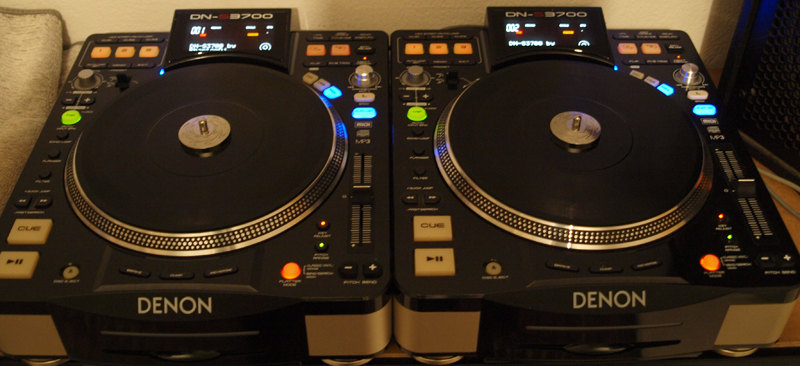
Πρώτα απ' όλα σιγουρευτείτε οτι έχετε εγκατεστημένο το τελευταίο firmware στα DENON DN-S3700: http://www.denondj.com

Εγκαταστείστε τους τελευταίους DENONDJ ASIO drivers στον υπολογιστή σας που υποστηρίζουν τα DN-S3700 (Αυτή τη στιγμή η έκδοση 2.2.1)

Συνδέστε τα decks απ' ευθείας πάνω σε δύο θύρες USB στον υπολογιστή σας για να εγκαταστήσετε τους drivers. Αργότερα μπορείτε να χρησιμοποιήσετε ένα "powered USB hub" (δηλαδή USB hub με εξωτερική τροφοδοσία) εαν δεν έχετε αρκετές ελεύθερες θύρες USB στον υπολογιστή σας.

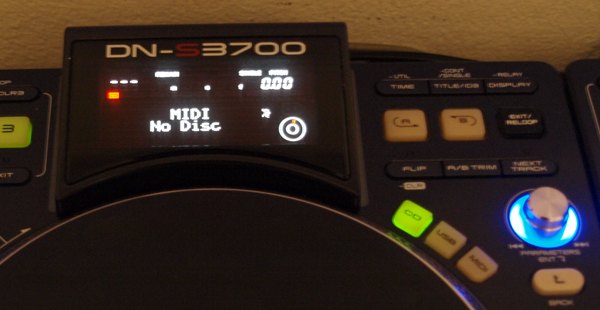
Αφού συνδέσετε τα decks με το PC πατήστε το κουμπί "MIDI" πάνω στα S3700.
Η λέξη "MIDI" πρέπει να εμφανιστεί στην οθόνη, και το Parameters Knob πρέπει να αρχίσει να αναβοσβήνει:


Εαν η οθόνη γράφει "Hybrid MIDI" αντί για "MIDI" τότε περιστρέψτε το parameters knob μέχρι η οθόνη να γράφει "MIDI"
Πατήστε το Parameters knob. Τα decks θα μπουν σε PC mode, και τα Windows θα εγκαταστήσουν τους drivers.
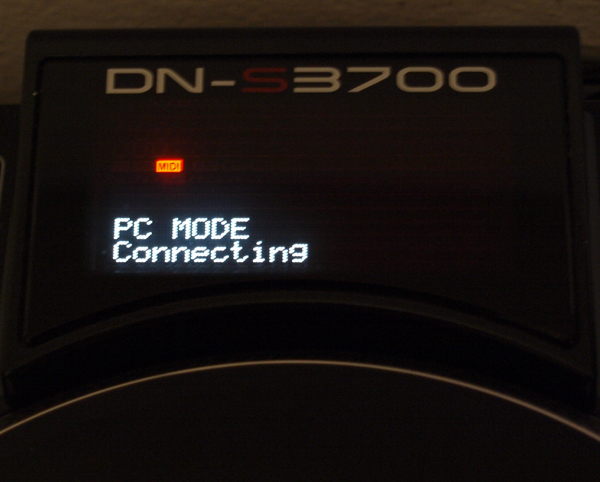
Όσο τα decks κάνουν αρχικοποίηση της επικοινωνίας τους με το PC οι λέξεις "PC MODE" και "Connecting" θα εμφανιστούν στην οθόνη:


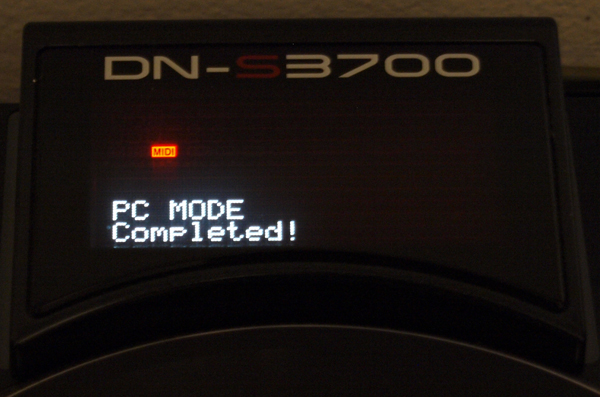
Όταν η αρχικοποίηση τελειώσει οι λέξεις "PC MODE" και "Completed!" θα εμφανιστούν στην οθόνη. Τώρα τα decks είναι έτοιμα!


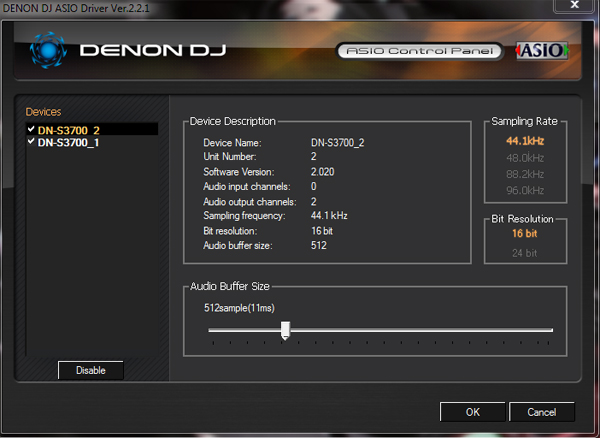
Ανοίξτε τον DENONDJ ASIO Control Panel και σιγουρευτείτε οτι βλέπετε δύο συσκευές και οτι έχουν ΚΑΙ ΟΙ ΔΥΟ ένα "V" μπροστά τους!


Κλείστε το DENONDJ ASIO control panel, ανοίξτε το VirtualDj και ανοίξτε το παράθυρο ρυθμίσεων (Config)
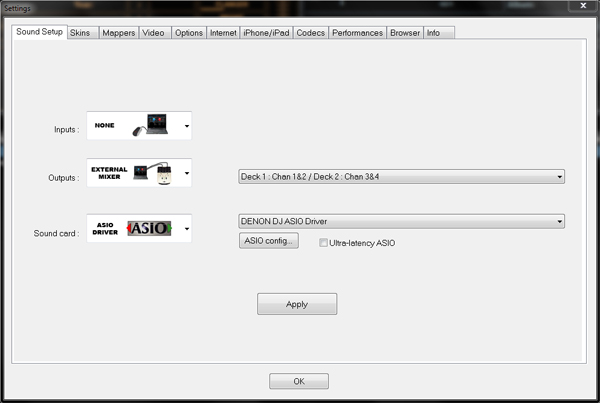
Σιγουρευτείτε οτι οι ρυθμίσεις σας είναι όπως παρακάτω:

Inputs: None
Outputs: External Mixer
Sound card: ASIO -> DENON DJ ASIO Driver


Κάντε κλικ στο APPLY.

Τώρα είστε έτοιμοι να χρησιμοποιήσετε τα DN-S3700 με το VirtualDj!!!


Υ.Γ.: Εαν το αριστερό deck ελέγχει την δεξιά πλευρά του VirtualDj τότε πατήστε το κουμπί "Eject" σε ΕΝΑ απο τα δύο decks (όχι και στα δύο).


Αναπαραγωγή από CD ή USB flash drive:

Εαν αλλάξετε κατάσταση αναπαραγωγής στα DN-S3700 ενώ το VirtualDj τρέχει αυτό θα έχει σαν αποτέλεσμα να "κοπεί" η κάρτα ήχου και ο MIDI driver και να εμφανιστεί ένα μήνυμα σφάλματος στο VirtualDj. (Είναι σαν να βγάζετε το καλώδιο USB από τον υπολογιστή σας)
Όταν ξαναγυρίσετε σε PC Mode μπορείτε να μεταβείτε στις ρυθμίσεις (CONFIG) -> Sound Setup και να πατήσετε APPLY για να κάνετε reset τον ήχο. Επίσης θα πρέπει να κάνετε map ένα πλήκτρο στο πληκτρολόγιο σας με την εξής εντολή: rescan_controllers & refresh_controller ώστε το VirtualDj να μπορέσει να επανακτήσει και το έλεγχο MIDI των decks.

Εαν θέλετε να κάνετε εναλλαγή μεταξύ VirtualDJ και CD ή USB χωρίς καμία διακοπή τότε θα χρειαστεί να χρησιμοποιήσετε μια εξωτερική κάρτα ήχου με δύο τουλάχιστον στερεοφωνικές εξόδους όπως η Numark DJIO, η Native Instruments Audio 2 DJ, κτλ. Παρόλα αυτά θα εξακολουθείτε να χρειάζεστε την εντολή που αναφέραμε παραπάνω για να παίρνετε τον πλήρη έλεγχο της λειτουργίας MIDI των decks.


Troubleshooting:
Παρακαλώ σιγουρευτείτε οτι έχετε αναβαθμίσει τα decks σας με το την τελευταία έκδοση firmware: http://www.denondj.com - Εαν τα decks έχουν παλιότερη έκδοση του firmware μπορεί να μην δουλεύουν σωστά.
Σιγουρευτείτε οτι και τα δύο decks είναι ρυθμισμένα να λειτουργούν στο MIDI channel 1 (Μην αλλάζετε το δεύτερο deck στο MIDI channel 2 γιατί το VirtualDj δεν θα μπορεί να το αναγνωρίσει.)
Σιγουρευτείτε οτι το Unit Number είναι ρυθμισμένο στο 1 και στα δύο decks. Επίσης σιγουρευτείτε οτι το Jog Pulse είναι ρυθμισμένο σε 1480/Cycle. Αυτή την στιγμή η ανάλυση 2960/Cycle δεν υποστηρίζεται!

TODO:
Πως να χρησιμοποιήσετε τα decks σας σε Hybrid Mode!


Thu 15 Dec 11 @ 5:56 pm

First of all please ensure that you have the latest firmware installed on each DENON DN-S3700: http://www.denondj.com

Install the latest DENONDJ ASIO drivers on your PC for your DN-S3700 (Currently Ver. 2.2.1)

Connect your decks directly on your PC USB ports for the first time in order to install the drivers. Later you can use a powered USB hub if you don't have enough free USB ports on your PC.

Once you connect your decks on the PC press the "MIDI" button on S3700.
The word "MIDI" should flash on the display and the Parameters Knob should start flashing:

If the display shows "Hybrid MIDI" instead of MIDI just turn the parameters knob until you see"MIDI" on your display.
Push the Parameters knob down. Your decks will enter PC mode, and Windows will install the drivers.
While the decks initialize their communication with your PC the words "PC MODE" and "Connecting" should appear on the display:

When the initialization is over, the words "PC MODE" and "Completed!" will appear on the display. Now your decks are ready!


Open the DENONDJ ASIO Control Panel and make sure that you see two devices listed, and that BOTH has a check mark in front of them!


Close DENONDJ ASIO control panel, start VirtualDj and open the configuration window.
Make sure that your settings are as follows:

Inputs: None
Outputs: External Mixer
Sound card: ASIO -> DENON DJ ASIO Driver


Click APPLY.

Now you are ready to enjoy your DN-S3700 with VirtualDj!!!

PS: If your left deck controls the right side of VirtualDj then you should press the "Eject" button on ONE of your decks (not on both). This will invert the decks.


Playing CD's or USB media:

If you switch to CD or USB media mode while VirtualDJ is running this will cut off the sound card and the MIDI driver (The equivalent of pulling out the USB cable) and you will get a sound card error in VirtualDJ.
Once you have switched back to PC mode, you can go to CONFIG -> Sound Setup and click APPLY to reset the sound. You will also have to map a button on your keyboard with the following VDJ Script code: rescan_controllers & refresh_controller in order to re-detect the decks in order to take back the control.

If you wish to switch seamlessly between VirtualDJ and CD's or USB media, then you will need to use an external sound card with at least two stereo outputs such as Numark DJIO, Native Instruments Audio 2 DJ, etc. However you'll still have to use the VDJ script command mentioned above in order to re-detect your decks.


Troubleshooting:
Please ensure that you have the latest firmware installed on each Denon DN-S3700: http://www.denondj.com - If the units have older firmware installed, they may not work correctly.
Make sure both players are set to the default MIDI channel 1 (Do not change the second player to channel 2 or it will not be detected by VirtualDJ.)
Make sure that Unit Number is set to 1 on both decks. Also make sure that Jog Pulse Sel is set 1480/Cycle. Currently 2960/Cycle is not supported!

TODO:
How to use your decks in Hybrid Mode!